Like most bloggers, I’ve used Bloglovin for the last few years to keep up with all the blogs I enjoy reading.
However, Bloglovin’ seems to be shifting away from being a simple RSS feed reader and turning into a social networking and promotional platform.
Which means, I need a new simple way to follow my favourite creators.
After trying some alternatives, I settled on Feedly. I transferred specific categories from Bloglovin to Feedly, and have been using it ever since to stay up-to-date with my favourite blogs.
Updated 2022 – What happened to Bloglovin’?
Bloglovin’ is no longer operating and the company has been rebranded, check out this post for details.
Why I now use Feedly to follow my favourite sites
Feedly’s interface is pretty amazing, so clean and simple but very useable.
The features are so simple too – you can easily organise your favourite blogs, websites, podcasts and YouTube channels all within Feedly.
There’s multiple layout options, auto-mark as read, tagging and organising features and keyboard shortcuts.
It’s really easy to use, the focus is on the content and it’s pretty sleek!
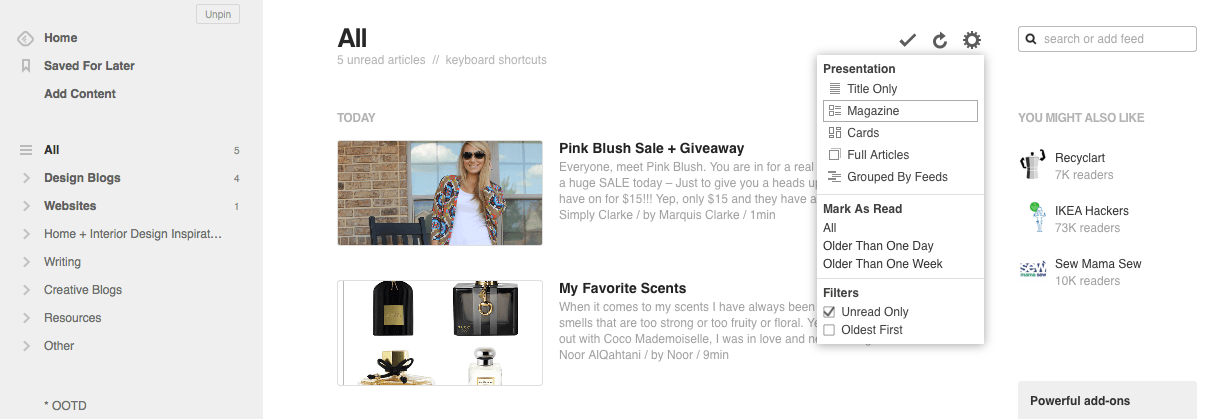
The sidebar
The sidebar is how you navigate around the different sections of Feedly.
First, you’ll home link to your dashboard and the Saved for Later section, which gathers all the articles you have marked as saved.
The Must Read section collects all the sites you have marked as Must Read so you don’t miss their articles.
Underneath this you’ll see your categories. You can categorise each blog you follow, I do this by topic.
Under that you’ll see a list of the tags you’ve added to posts, like labels or subcategories. I typically go through my feed and save the posts I want to read before marking the feed as read. I then go to my saved for later section and read each post. When I finish reading a post, I tag it appropriately so if I need to find it in the future it’s easily accessible.
At the bottom of your sidebar, you’ll see three little dots. This shows other links and settings. Here you can see your recently read posts showing your reading history, organise your blogs by categories, change your theme/colours and choose from a huge range of options including what you want displayed on your home page, how you want the read/unread to work and changing the colour of text for posts that are read/unread.
The feed action bar
At the very top of the feed section you’ll see the feed (home/category) title and the number of unread items you have.
On the right you’ll see the actions menu. Here you can mark all posts as read, refresh your feed, change viewing settings like changing the style of how your feed is shown (in a list, magazine showing thumbnail and excerpt, card is grid format, the new slider, etc) and how posts are shown (oldest or most recent first and only show unread items).
How to follow new blogs
Theres a couple of ways to add new content.
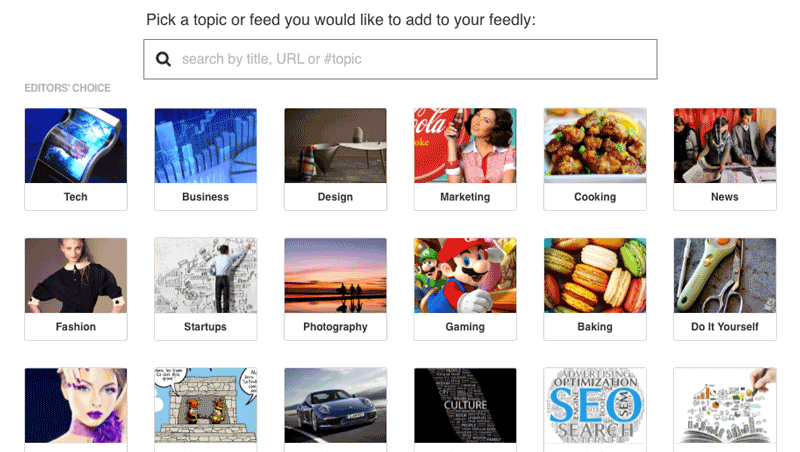
You can click Add Content in your sidebar and add the site using the name or URL. Here, you can also search by topic or look through the editors choice of popular topics.
The search bar in the actions menu works in a similar way, letting you search by blog name, URL or topic.
Just like Bloglovin and other feed readers, Feedly uses the blogs RSS Feed to gather posts. You can follow any public blog with a valid RSS Feed.
Your feedly link will look something like http://www.feedly.com/home#subscription/feed/YOUR-FEED-ADDRESS
You can share this link for others to follow your blog. You can also make a Feedly button for your blog or website here.
How to use your feed to read the latest posts
When you click on a blog it will open either with a summary or the full post, depending on how the author has set their RSS Feed.
I love the look of the post view, it’s really easy to read with a clean perfectly sized font!
Under the post title, you’ll see the author info. Sometimes a little number appears next to the author, this is the engagement number and is a combo how many times the article has been shared or saved.
You’ll see a link to keep that article unread or to hide that article from your feed. You can preview what the post looks like on the actual site while staying on Feedly.
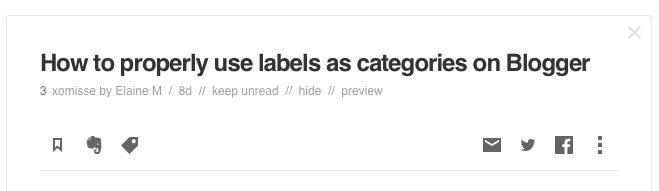
Underneath that, before the article itself, you’ll see more options. Here you can save the post for later. To save an article for later you simple click the bookmark icon when reading the post. On your phone you can tap and hold the article or open it and click the bookmark icon.
With the pro version, you can search through saved items for a specific post which is such a useful tool that a lot of Feed Readers don’t have!
You can tag/label posts e.g. “read later”, “beauty”, “feature this”, “share on twitter”, etc and they’ll show in your sidebar under your categories. You can share posts on social media and send them to Evernote, Pocket, etc.
Using Feedly on a web browser and phone
You can get a browser extension for Feedly but the new Feedly Mini extension for Chrome is amazing. It allows you to save, tag, share or follow sites as you browse the web. They are looking into extending this to other browsers too.
Feedly is also available for iOS and Android and it makes reading posts on your phone so easy. Before I never used to read on my phone but now I do. There’s some extras options for phone users, including changing the size of fonts, changing the theme to be suitable for nighttime reading and more.
Conclusion
Feedly is relatively new so they are improving it each day, but they want it to remain a reader application, which I like. All in all, I really like Feedly and at the moment, its the perfect solution for me.
What do you use to follow your favourite blogs? If you have tried Feedly, what are your thoughts?