On Blogger, the header element is locked by default in the Layout Gadget area. This can cause problems when you are re-designing your blog, especially if you want to put something above your header, move it elsewhere or delete it altogether. This tutorial will show you how to unlock your header gadget so that you can move it, delete it and add more gadgets to that section.
Heads up! This post is no longer being updated, so some details may be out of date.
Unlocking the Header Element
Go to Template > Edit HTML > Format Template. Search for region-inner header-inner. If you are having trouble finding the code, check out Finding Code in HTML Editor and Understanding CSS.
The search should bring you to this code
<div class='region-inner header-inner'>Under this you’ll see the following code (may look different depending on your template)
<b:section class='header' id='header' maxwidgets='1' showaddelement='no'>
    <b:widget id='Header1' locked='true' title='Header' type='Header'>
         <b:includable id='main'>
Alter the value for maxwidgets so it looks like this
<b:section class='header' id='header' maxwidgets='2' showaddelement='yes'>
    <b:widget id='Header1' locked='false' title='Header' type='Header'>
         <b:includable id='main'>
what each section means
maxwidgets='1' – max number of gadgets allowed in that section. Change to any number.showaddelement='no' – show “add a new gadget” in section. Change to yes.locked='true' – locked so you can’t delete the gadget. Change to false.
Moving or Removing the Header Element
Now if you go to Layout (you may have to refresh the page), the header element will look like the other gadgets. You can now move it to where you want. To remove it, click edit > remove.
Adding other gadgets above the Header Element
Go to Layout > add a new gadget. You can now re-arrange the gadgets to put ones above the header.
Gap above navigation caused by Blogger Navbar
To remove Blogger navigation bar, go to Layout > NavBar and turn it off. You’ll be left with a blank space. To remove this gap go to Template > Edit HTML and above ]]> </b:skin> add the following
body .navbar { height: 0px; } .content-inner { padding-top: 0px; }Elements losing styling/CSS when moved above header
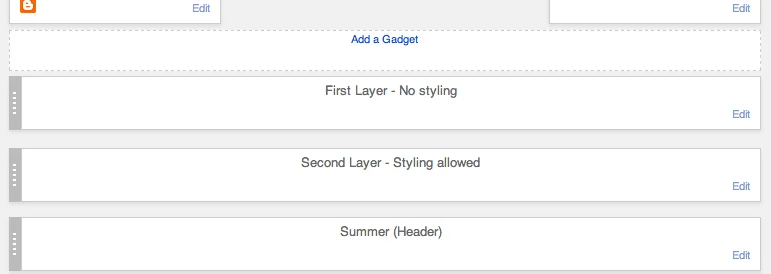
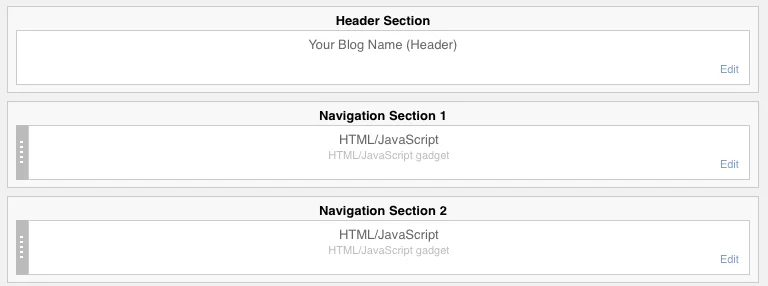
Occasionally, putting certain elements above the header will remove the CSS associated with it. Here’s a solution to that. In the layout tab drag your header, navigation and any other gadgets down a little. It will jump to the second level (typically called Cross-Column depending on your template). This shouldn’t effect the look of your blog (as in it will still appear at the top) but it will keep the styling. This image will hopefully explain that better.