There may come a time when you want to add a nofollow tag to links in your navigation – whether for external links, social media icons or something else.
This post will show you how to add nofollow links in WordPress navigation menus and how to make them open in a new tab/window so that your visitors don’t leave your site.
Nofollow links tell Search Engines not to follow the link and that it shouldn’t influence the SERP. It is recommend that you use NoFollow Links on any links that have any kind financial gain behind them.
Add nofollow links in WordPress navigation menus
From your WordPress Dashboard, go to Appearance > Menu. Click on Screen Options at the top right corner of the screen and check the boxes next to Link Relationship (XFN) and Link Target options.

Now click the links tab and add your custom link. In the expanded menu item, you’ll now see Link Relationship and Open link in a new window/tab.
Enter nofollow in the link relationship option, tick the option to Open link in a new window/tab and save the changes.
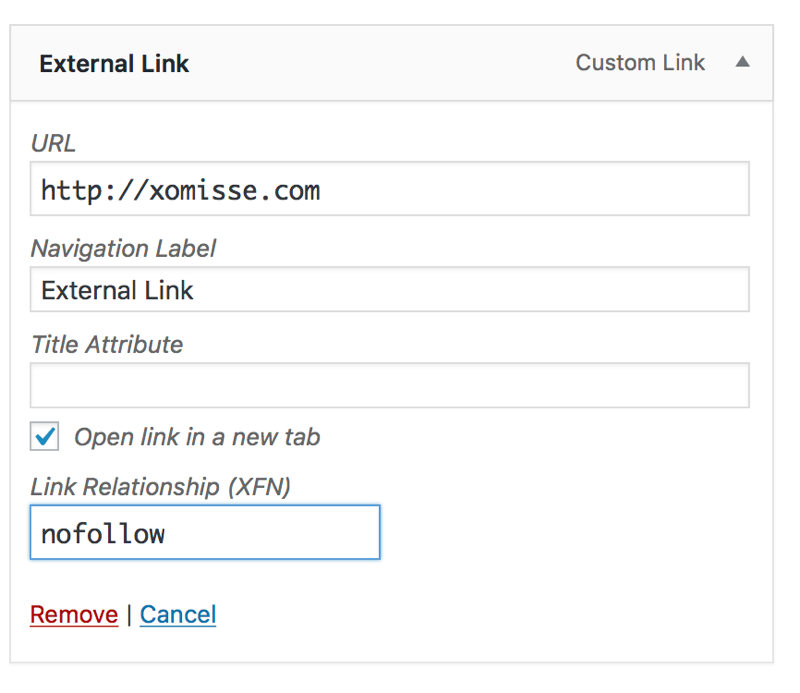
If you check the HTML source for your link, it should now show the nofollow attribute.