
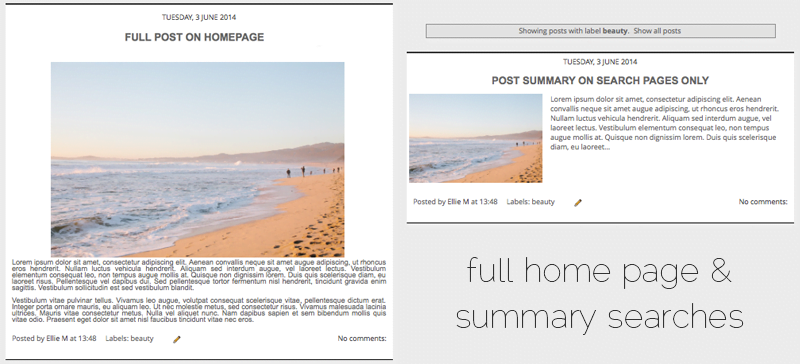
I wrote a previous tutorial about adding post summaries with a thumbnail to your Blogger blog so that a short extract is shown along with a read more link instead of the full post. I was asked if it was possible to show full posts on the homepage and excerpts only on searches such as labels, archives and the blogs search function. I played around with Bloggers conditional tags to alter the previous tutorial to allow this. Unfortunately I couldn’t include the read more text link but clicking the post title will open the full post. Here is an example of what it will look like.
- Go to Template > Edit HTML > Format Template and find
</head>, paste the following right above it.<script type='text/javascript'> var thumbnail_mode = "no-float" ; summary_noimg = 300; summary_img = 350; img_thumb_height = 200; img_thumb_width = 300; </script> <script type='text/javascript'> //<![CDATA[ function removeHtmlTag(strx,chop){ if(strx.indexOf("<")!=-1) { var s = strx.split("<"); for(var i=0;i<s.length;i++){ if(s[i].indexOf(">")!=-1){ s[i] = s[i].substring(s[i].indexOf(">")+1,s[i].length); } } strx = s.join(""); } chop = (chop < strx.length-1) ? chop : strx.length-2; while(strx.charAt(chop-1)!=' ' && strx.indexOf(' ',chop)!=-1) chop++; strx = strx.substring(0,chop-1); return strx+'...'; } function createSummaryAndThumb(pID){ var div = document.getElementById(pID); var imgtag = ""; var img = div.getElementsByTagName("img"); var summ = summary_noimg; if(img.length>=1) { imgtag = '<span style="float:left; padding:0px 10px 5px 0px;"><img src="'+img[0].src+'" width="'+img_thumb_width+'px" height="'+img_thumb_height +'px"/></span>'; summ = summary_img; } var summary = imgtag + '<div>' + removeHtmlTag(div.innerHTML,summ) + '</div>'; div.innerHTML = summary; } //]]> </script> -
Now find
<data:post.body/>, skip the first one which is for mobile and go to the next. You’ll see something similar to this<b:if cond='data:blog.metaDescription == ""'> <!-- Then use the post body as the schema.org description, for good G+/FB snippeting. --> <div class='post-body entry-content' expr:id='"post-body-" + data:post.id' itemprop='description articleBody'> <data:post.body/> <div style='clear: both;'/> <!-- clear for photos floats --> </div> <b:else/> <div class='post-body entry-content' expr:id='"post-body-" + data:post.id' itemprop='articleBody'> <data:post.body/> <div style='clear: both;'/> <!-- clear for photos floats --> </div> </b:if> <b:if cond='data:post.hasJumpLink'> <div class='jump-link'> <a expr:href='data:post.url + "#more"' expr:title='data:post.title'> <data:post.jumpText/> </a> </div> </b:if> <div class='post-footer'>Replace
<data:post.body/>with the code below. If you have two<data:post.body/>in your template within this section, you may need to replace them both.<!-- START post summary for search by xomisse --> <b:if cond='data:blog.searchLabel'> <div expr:id='"summary" + data:post.id'><data:post.body/></div> <script type='text/javascript'>createSummaryAndThumb("summary<data:post.id/>"); </script> <span class='jump-link' style='float:right;padding-top:20px;'><a expr:href='data:post.url'> read more "<data:post.title/>"</a></span> <b:else/> <data:post.body/> </b:if> <!-- END post summary for search by xomisse --> - To change the height and width of the thumbnail you can alter the numbers in this section of the code in step 1
img_thumb_height = 200;
img_thumb_width = 300;
If thumbnails are stretched/skewed
If your thumbnails image are looking a little squished, go to Template > Edit HTML and find the code you added in the first step above </head>. You can alter the numbers for this section
summary_noimg = 300;
summary_img = 350;
img_thumb_height = 200;
 img_thumb_width = 300;
to change the height and width of the summary & thumbnail. I recommend completing the tutorial first and then coming back to this once everything else is done.